rawr
an insanely fast RAW viewer for culling your photos
rawr is a Mac app that gets you from thousands of photos to the few worth keeping. Flip through and rate photos as fast as you can, and it keeps up. Photos are grouped into bursts, and rawr can stabilize each one and find its sharpest frame. When you're done, run actions you've set up for your own workflow, like copying picks, moving and renaming files, or trashing rejects.
- CanonCR2 · CR3
- NikonNEF · NRW
- SonyARW
- FujifilmRAF
- OlympusORF
- PanasonicRW2
- PentaxPEF
- Hasselblad3FR · FFF
- Digital NegativeDNG
- JPEGJPG · JPEG
- HEICHEIC · HEIF · HIF
- VideoMP4 · MOV · M4V
Built for Speed
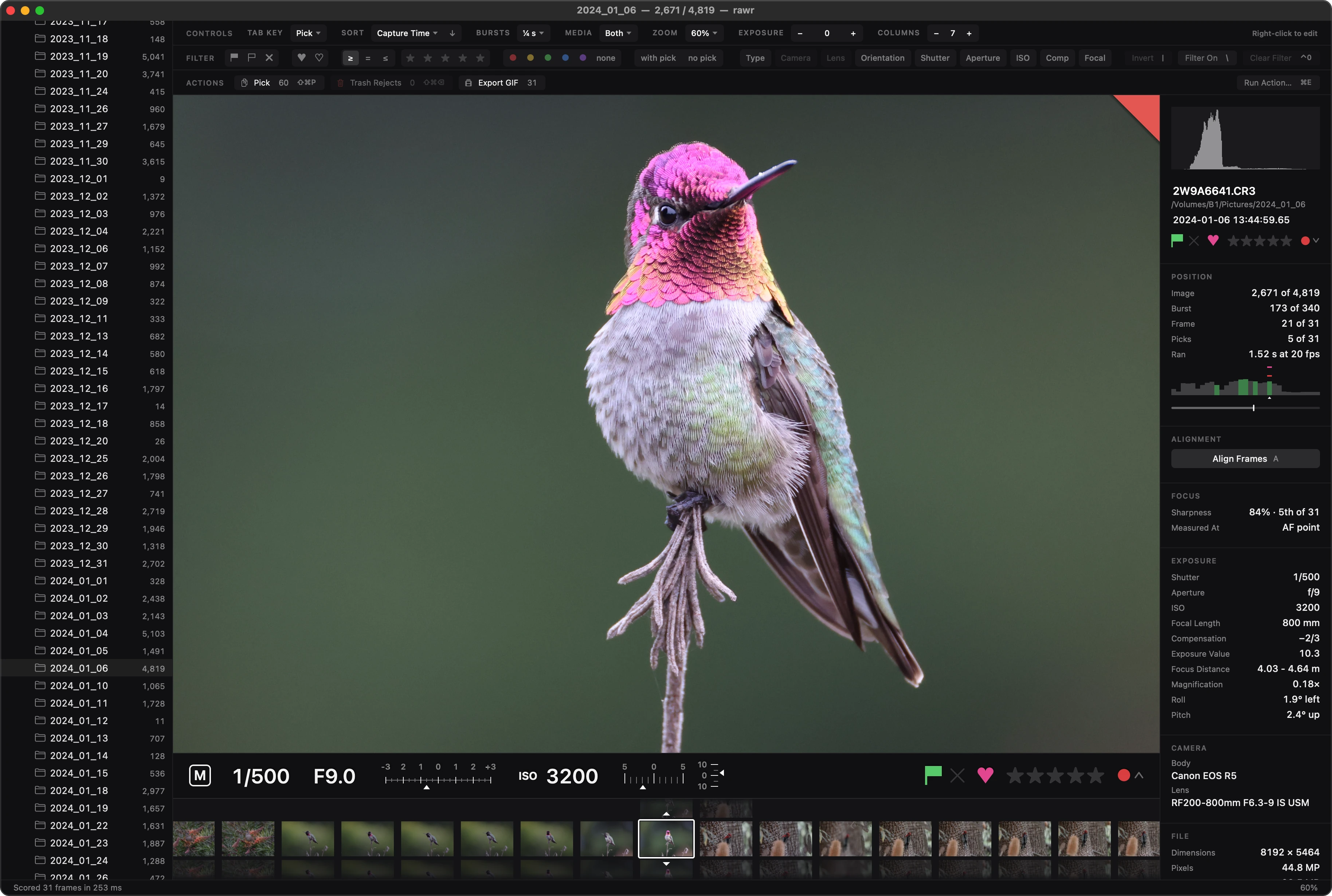
rawr opens in under a quarter of a second, and keeps up however fast you go. Hold down an arrow key and it shows every frame as the key repeats, straight from 45-megapixel raws, with nothing to wait for. Even a shoot of thirteen thousand photos shows its first screen of thumbnails in under half a second, the first time you open it.
- 0.22 sfrom launch to a screen of thumbnails
- 0.35 sto show a 13,165‑photo shoot the first time
- 18 msto open it again
- 2 msto decode a 45‑megapixel raw's preview
- 37 msto decode it at full size
- 93 msto quit
Measured on a Mac Studio with an M5 Ultra, opening Canon EOS R5 Mark II raws from an external RAID with the Mac's disk cache emptied first.
Grid View
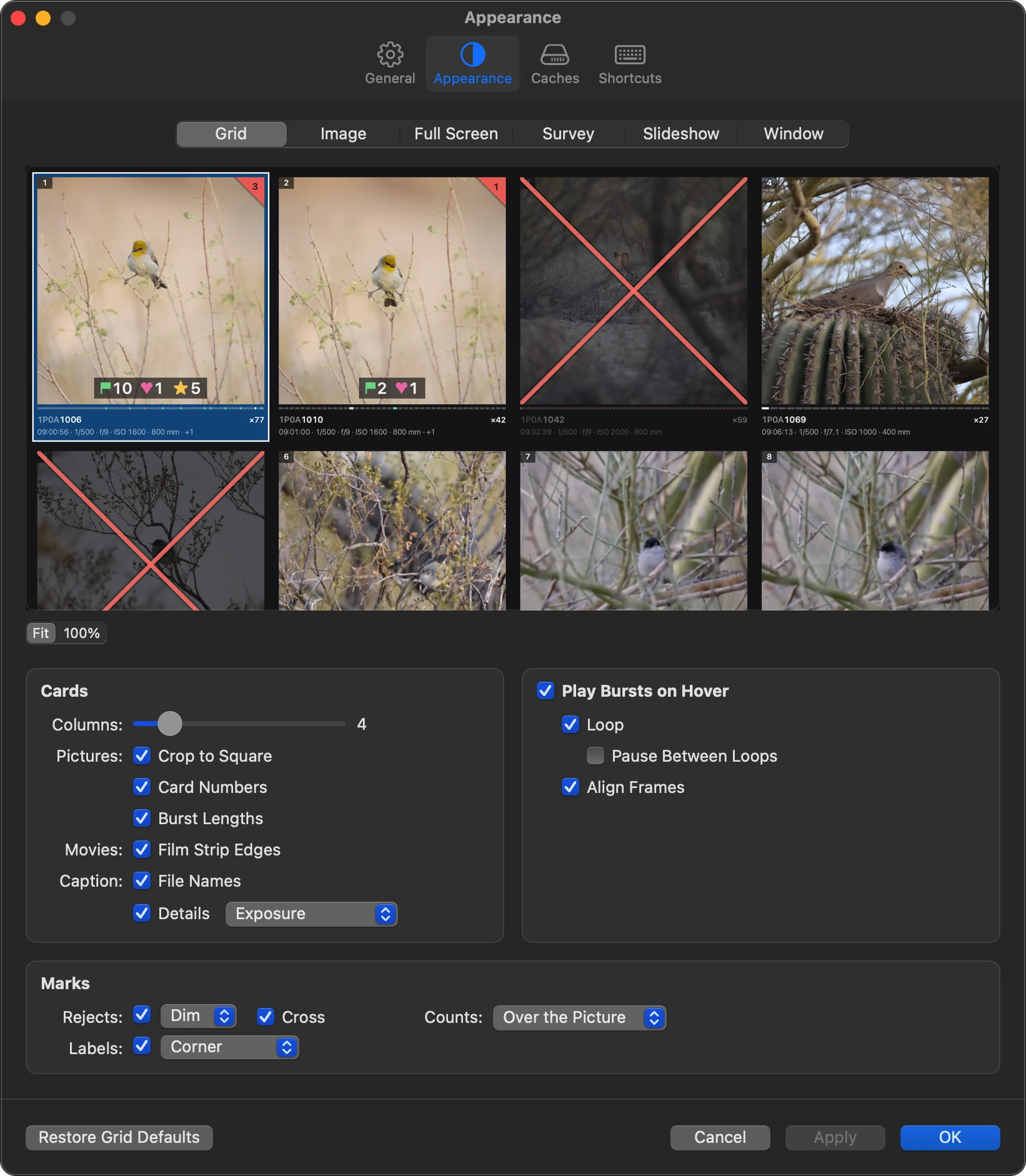
Every burst collapses into a single card, so a long day of shooting stays easy to scan. Press B when you want to see every photo instead. You can tell where each burst stands without opening it: rejects are crossed out, and each card shows its picks, hearts, stars, and colors. The side rail sums up the whole folder, and the timeline shows how the day went.
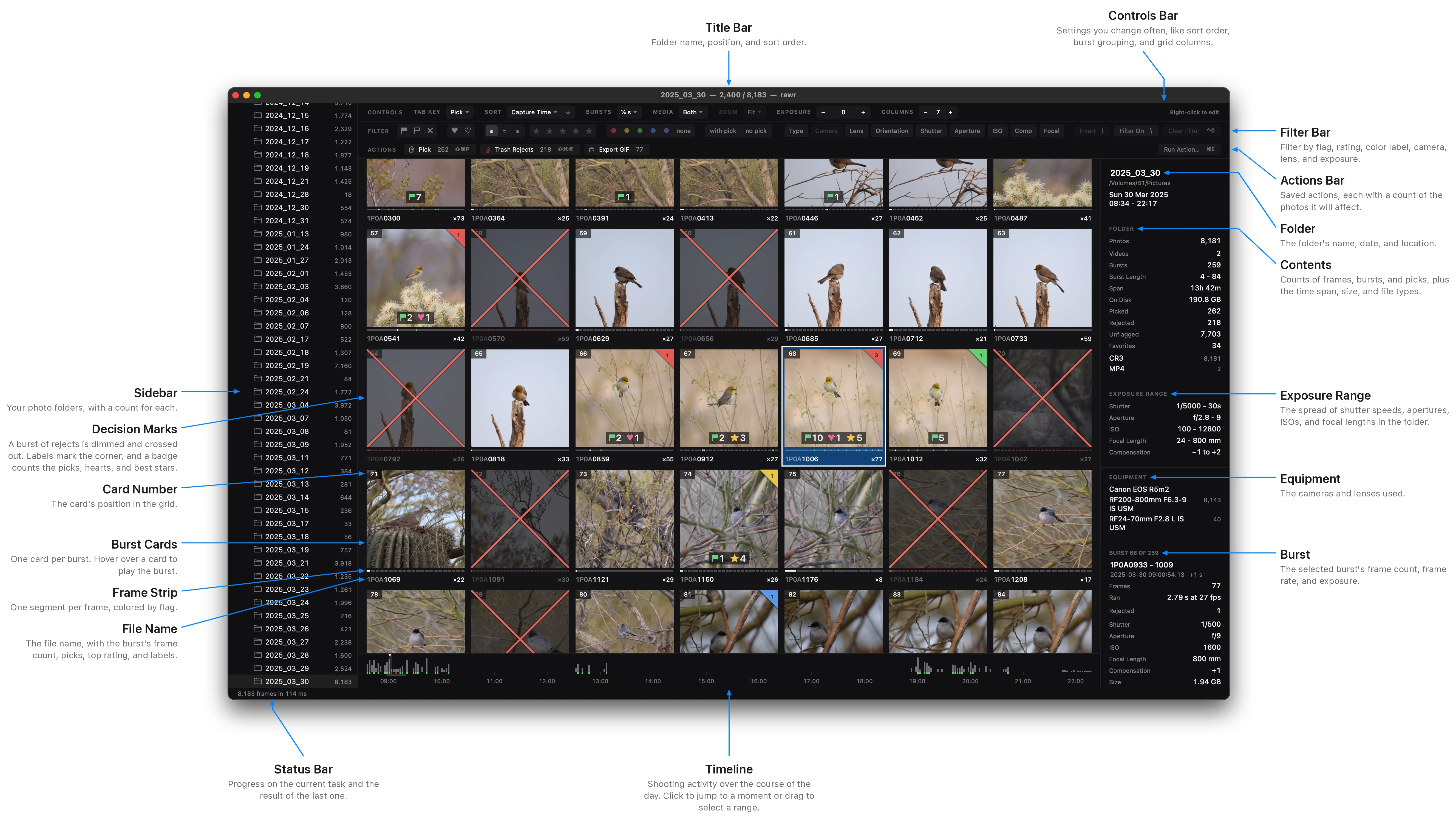
Image View
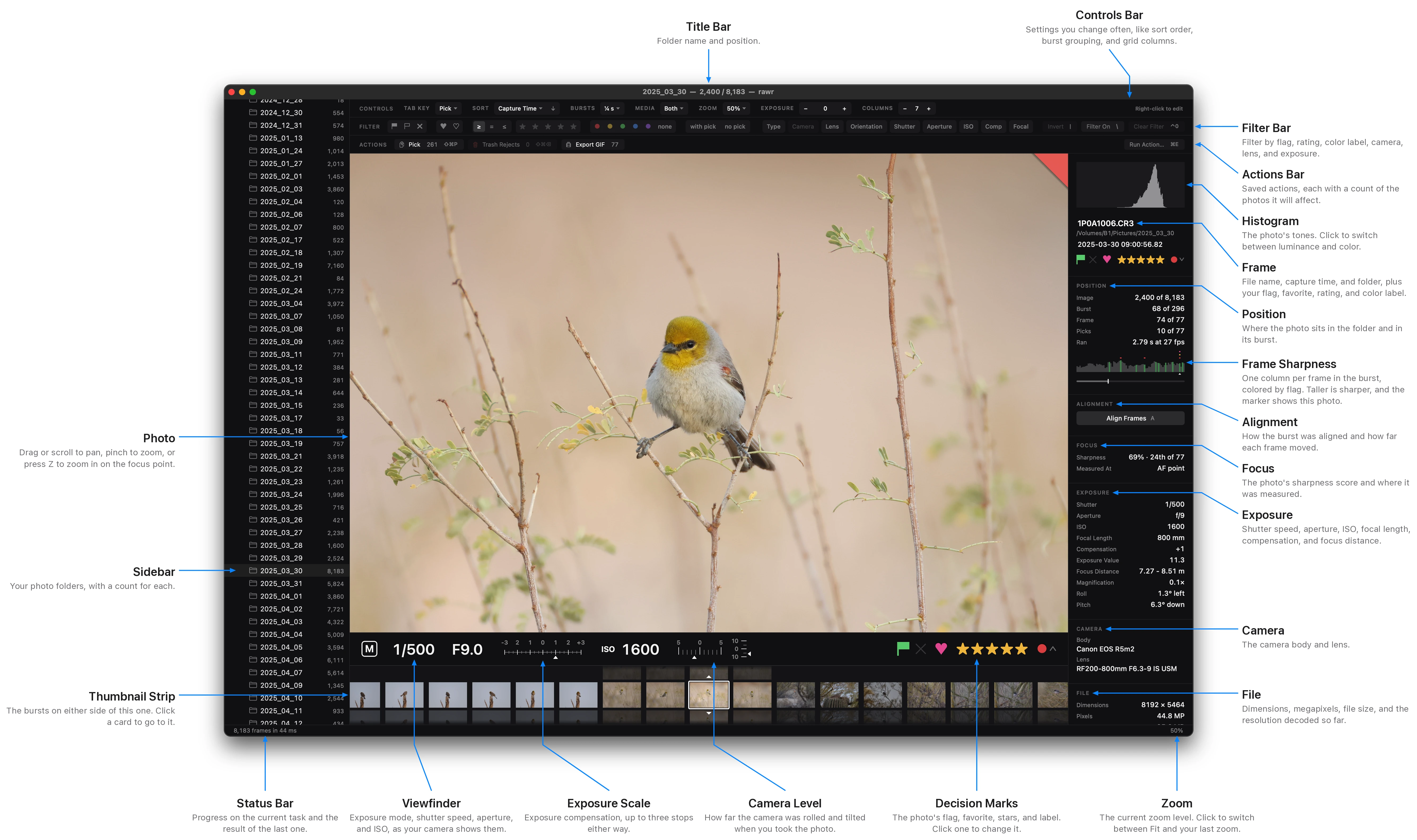
The image view shows one photo at a time, with everything you need to judge it. Press G to switch between it and the grid. The viewfinder along the bottom reads just like your camera's, and the side rail shows the histogram, the sharpness score, and where the frame sits in its burst. Press Z to zoom in on the focus point.
Play Bursts on Hover
Hover over a card and its burst plays back in real time. You can find the moment you want before you ever open the burst.
Burst Alignment
A handheld burst jumps around from frame to frame. Press A and rawr stabilizes it, so the subject stays put and you can see exactly how the focus and pose change.
Culling Assistance
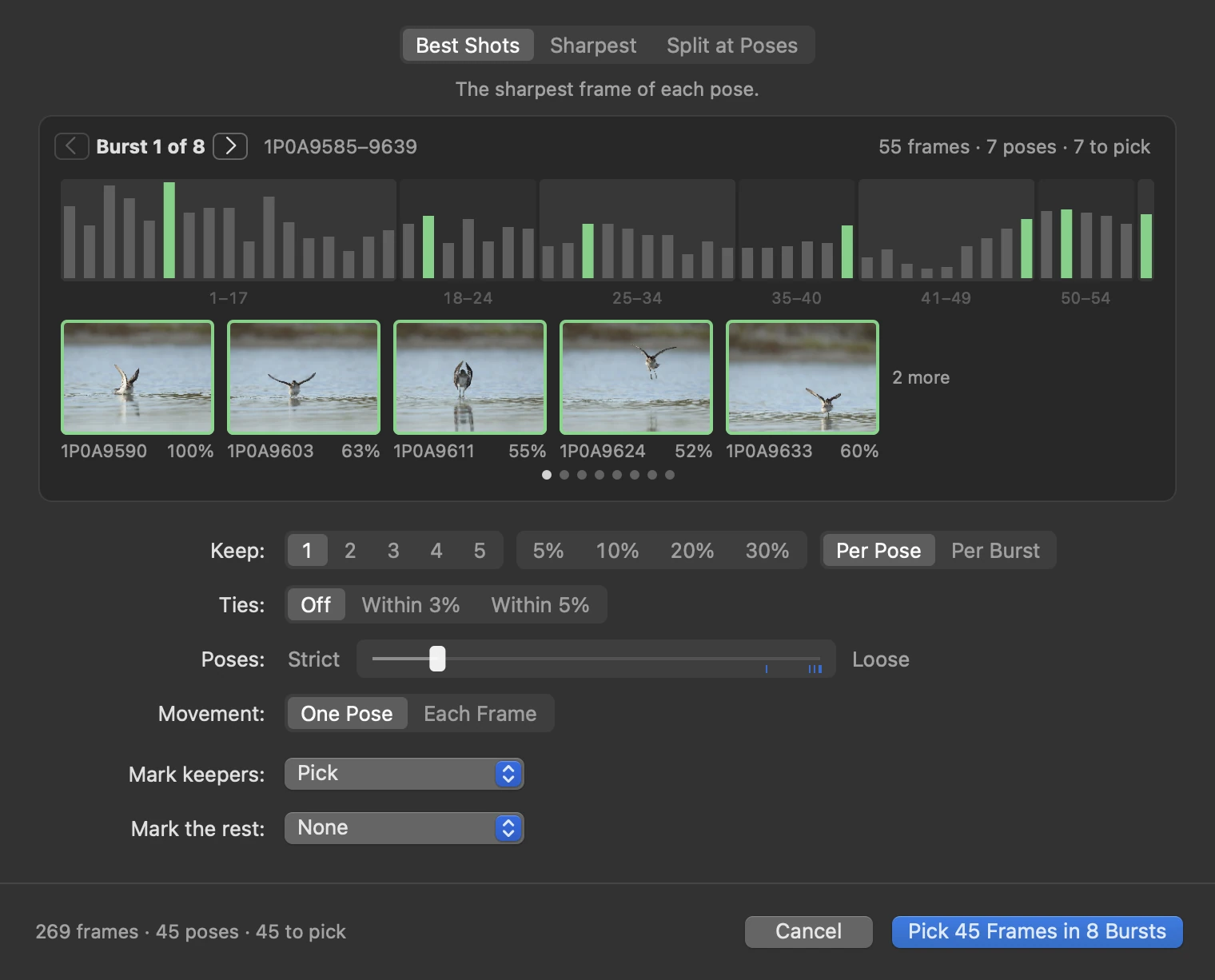
You rarely need every frame of a burst. Press D and choose how many to keep, like one per pose or 20% of each burst. rawr finds where the subject's pose changes and keeps the sharpest frame of each.
Timeline
The timeline along the bottom of the grid shows how much you shot and when, with your picks and rejects marked underneath. Click a moment to jump to it, or drag across a stretch to select every burst in it.
Filters
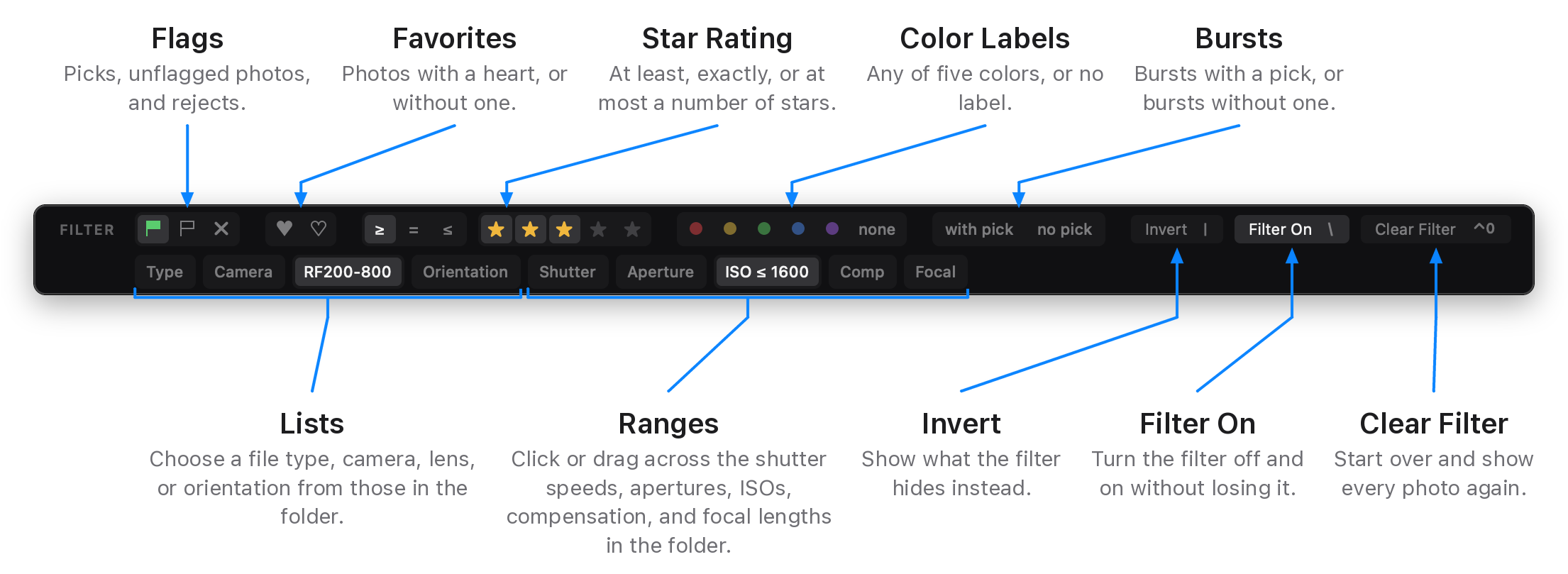
Find exactly the shots you want. Filter by flag, stars, color, or heart, or by camera, lens, and exposure. Press \ to turn the filter off and back on without losing it, or | to invert the filter.
Actions
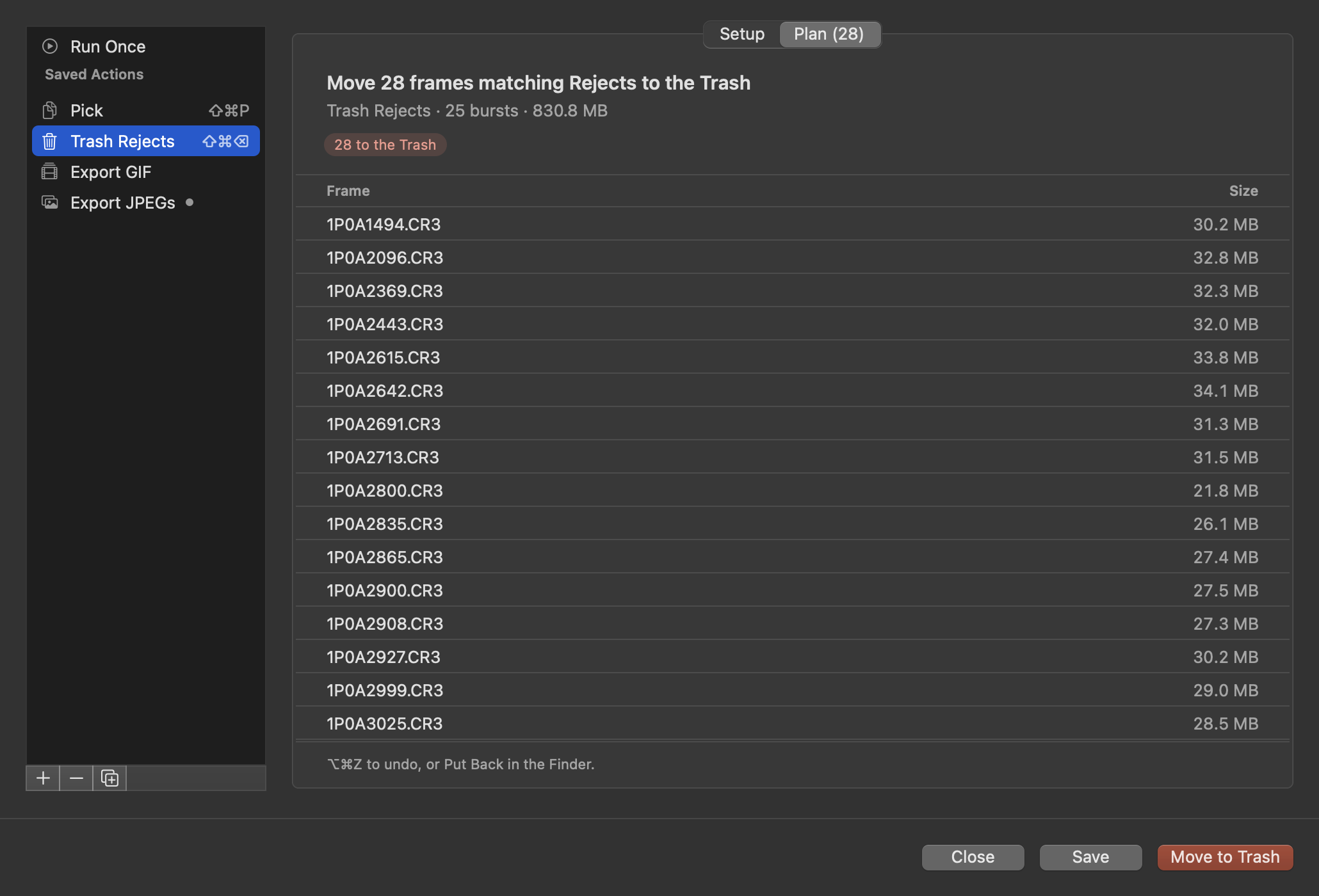
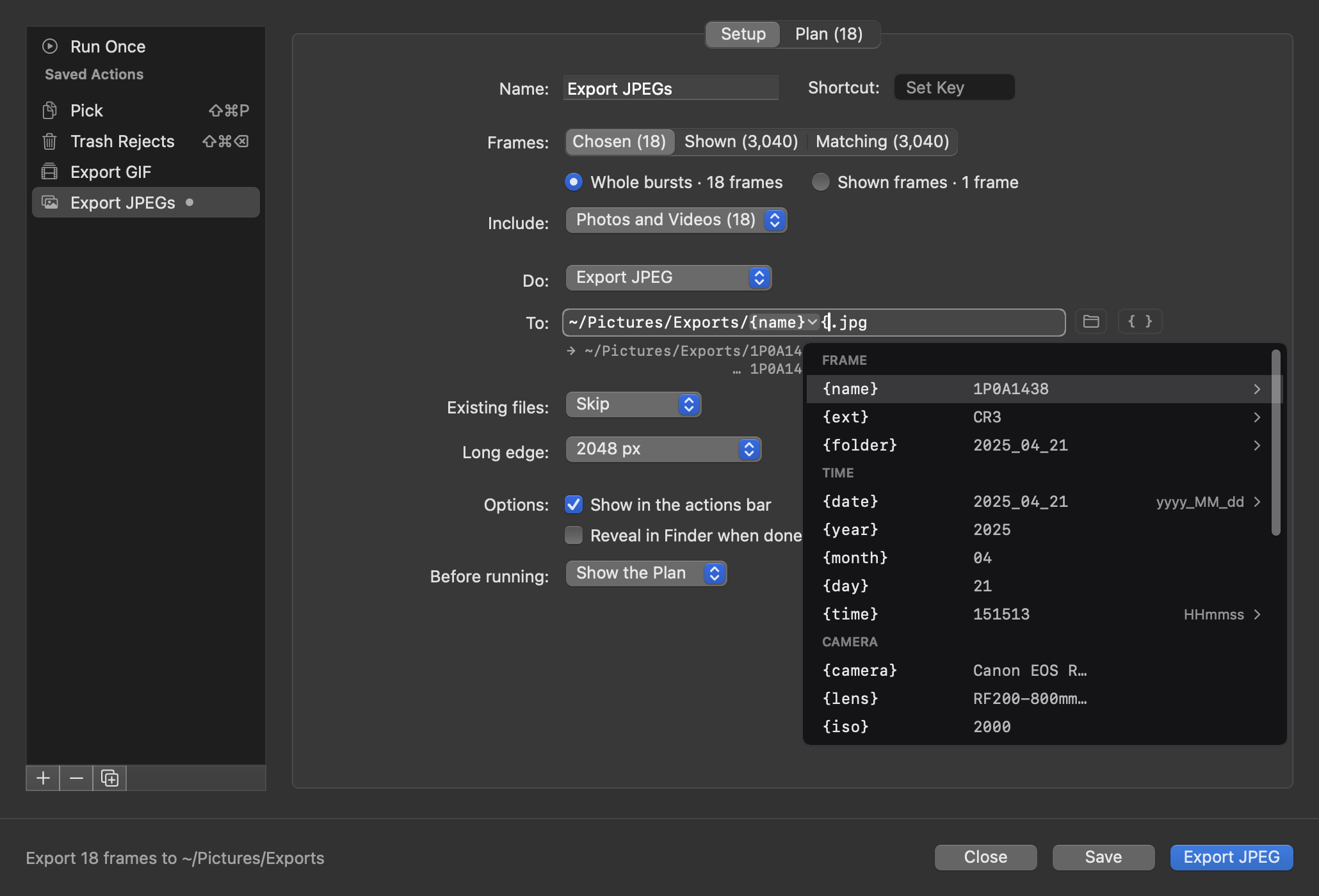
Everyone finishes a shoot a little differently. Save your own steps as actions, like copying your picks into a dated folder or trashing the rejects, and run them with a single click or keyboard shortcut. Each one shows exactly what it will do first, and you can undo it afterward.
Survey
Can't decide between a few frames? Select them and press N to see them side by side. Take away the weaker ones one at a time until only the best is left, or rate them right there.
Video
Videos sit right alongside your photos. Press Space to play one, then rate it, label it, and run actions on it just like a photo.
Plays Well with Others
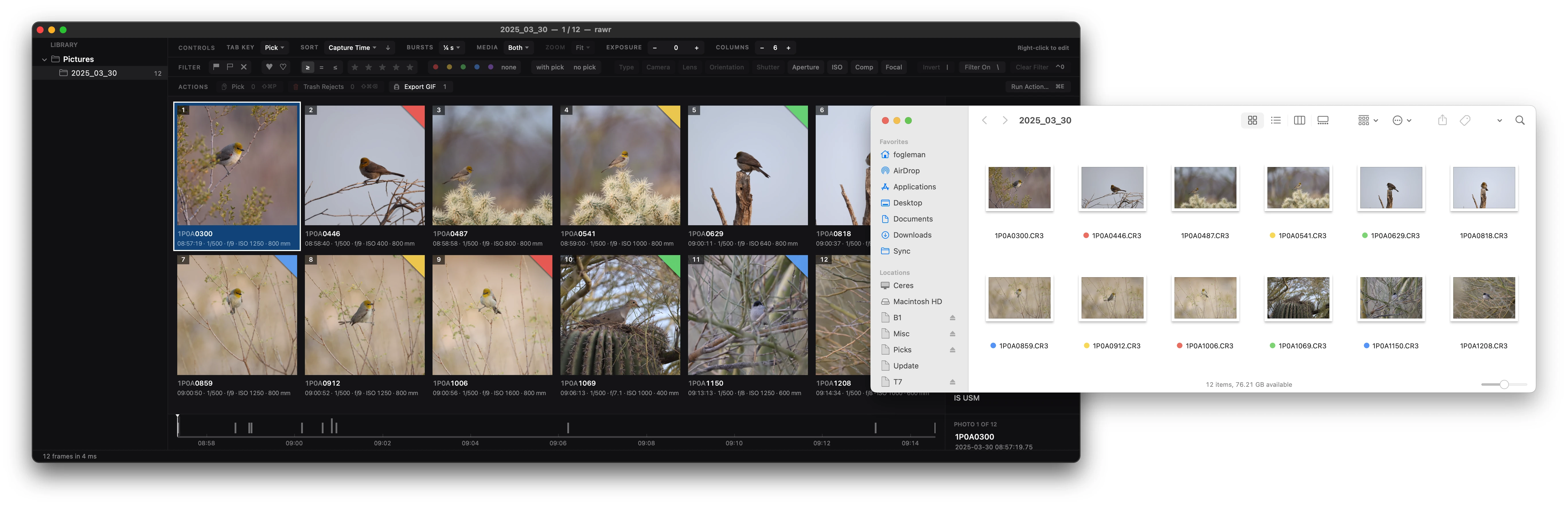
rawr fits in with the apps you already use. When you open a folder, it picks up the ratings you gave in Lightroom, Photo Mechanic, Capture One, Bridge, darktable, or digiKam from their XMP sidecars, along with any stars you gave on the camera. Your flags, stars, and labels can be written back to XMP, so they're waiting when you import. Color labels can show up as tags in the Finder too, and tags you add in the Finder show up in rawr.
Highly Configurable
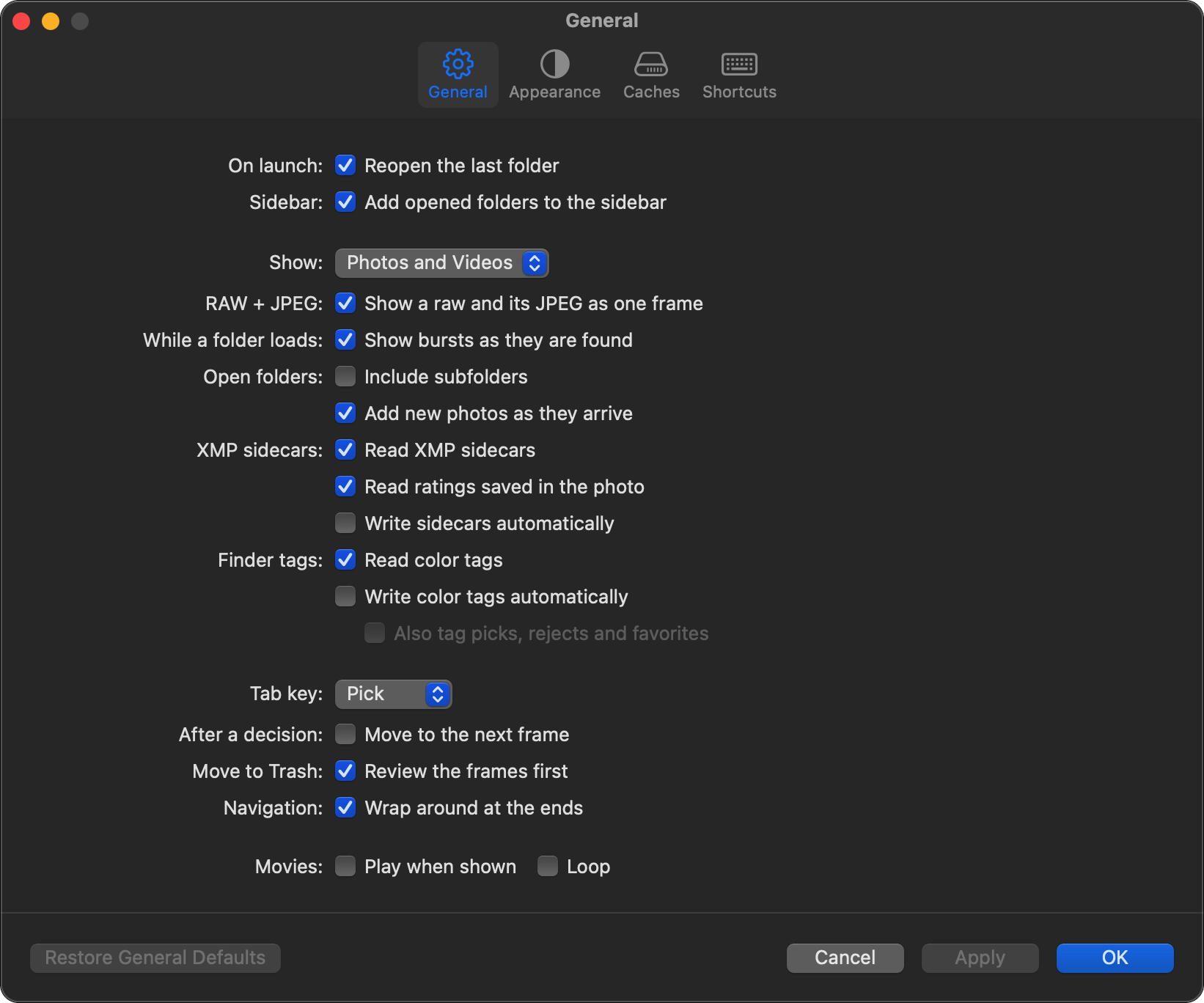
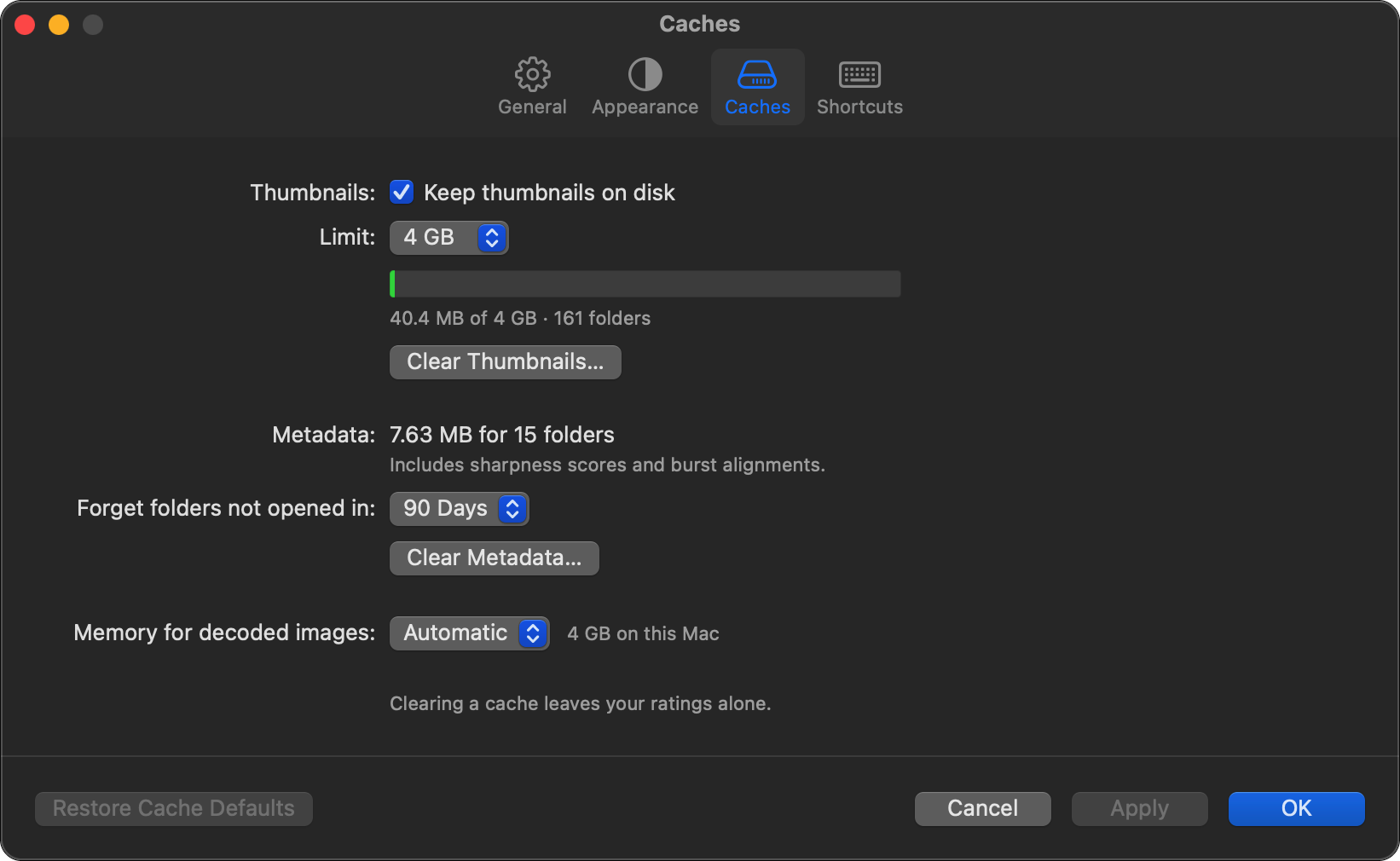
Make rawr work the way you do. Press ⌘, to open Settings, where you can choose how each view looks and how much space the caches use. You can change every keyboard shortcut, too.
Features
Rating
- Flags
- Pick with P, reject with X, and clear a flag with U.
- Stars and Labels
- Rate with 1 through 5, and add a color label with 6 through 9.
- Favorites
- Hearts are separate from stars. Press H to heart the frames you love most.
- Auto Advance
- Move on to the next frame as soon as you rate the current one.
- Tab Key
- Assign the mark you give most to the Tab key. Press ⇧Tab to take it off.
- Keyboard First
- Every command has a key. Press ⌘/ to see them all.
Bursts
- Burst Grouping
- Frames shot close together become one burst. Press B to group or ungroup, and set the gap anywhere from a quarter second to a minute.
- Hover Playback
- Hover over a card and its burst plays back in real time.
- Sharpness
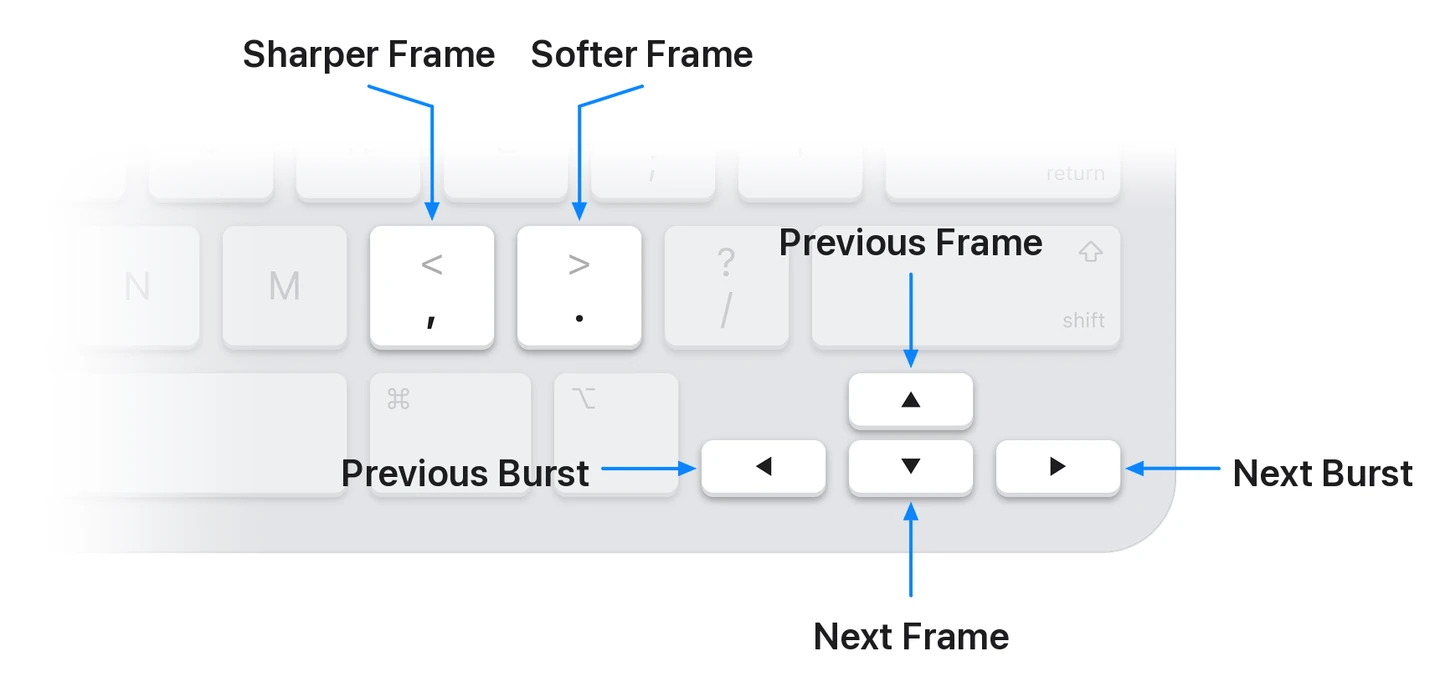
- Press R to score a burst at its focus point and jump to the sharpest frame. Then press , or . for the next sharper or softer one.
- Focus Point
- Press Z to zoom in on the camera's focus point and follow it from frame to frame.
- Alignment
- Press A to stabilize a burst on the whole frame, the subject, or the background.
- Smooth Pan
- Take the shake out of a panning burst and keep the pan.
- Best Shots
- Press D to keep the sharpest frame of each pose, or a set share of every burst.
Viewing
- Grid and Image
- One card per burst, or one photo at a time. Press G to switch.
- Survey
- Press N to compare your chosen frames side by side.
- Full Screen Preview
- Press F to fill the screen with the photo and nothing else.
- Viewfinder
- Exposure, drive, focus, metering, and white balance along the bottom, the way your camera shows them.
- Side Rail
- The histogram, exposure, sharpness, camera, lens, and file details beside every photo.
- Video
- Videos sit right alongside your photos. Press Space to play one.
Finding
- Filters
- Filter by flag, stars, color, heart, file type, camera, lens, orientation, shutter speed, aperture, ISO, compensation, and focal length.
- Type a Filter
- Press / and start typing a camera, lens, or ISO to filter by it.
- Invert
- Press | to see everything a filter leaves out.
- Sort
- Sort by capture time, name, stars, flag, favorites, or burst length. Bursts always stay together.
- Timeline
- See how much you shot and when. Click to jump, or drag to select.
- Sidebar
- Your photo folders, each with a count.
Finishing
- Actions
- Copy, move, rename, export JPEGs, write XMP sidecars, trash, and more. Put the ones you use most in the bar, each with its own keyboard shortcut.
- A Plan First
- Every action lists what it will do to each file before it runs.
- Templates
- Name files and folders from the date, camera, lens, ISO, and more.
- Sequences
- Chain several actions into one run.
- Undo
- Press ⌥⌘Z to undo the last action.
- Drag Out
- Drag frames straight to the Finder or another app.
Files
- Raw and JPEG Pairs
- A raw file and the JPEG or HEIF saved beside it count as one frame, and actions keep them together.
- XMP Sidecars
- Ratings from Lightroom, Photo Mechanic, and other apps come in from their XMP sidecars, and yours can be written back.
- Finder Tags
- Color labels can be written as Finder tags, and tags you set in the Finder show up as labels.
- Ratings Kept Separate
- Flags, stars, hearts, and labels live in rawr's own database, never in your raw files.
- Truncate
- Keep only the preview and metadata of frames you'll never edit, and free most of their space.
- Cached Thumbnails
- A folder you've opened before comes back fast.
Try the Beta
rawr is in private beta for macOS 13 and later.
Send an email to join.